
Home / Guides / How to set up a tournament in MedalDesk, tab by tab
How to set up a tournament in MedalDesk, tab by tab
MedalDesk is built so you work through the tabs across the top, left to right. Do them in order and you will go from an empty tournament to medals and a report, without a spreadsheet. This guide walks through each tab and what to do there. It works the same for badminton, pickleball and volleyball. See MedalDesk for badminton tournament software, pickleball tournament software and volleyball tournament software.
1. Setup: details, courts, events and fees
Click Setup. It has four parts, and you can do them in any order inside the tab.
- Tournament. Add the name, dates, location and the rules for the day. Choose whether clubs or teams enter, or individual players. This choice decides what your registration page asks for later.
- Courts. Enter how many courts you are using. The schedule uses this number, so get it right.
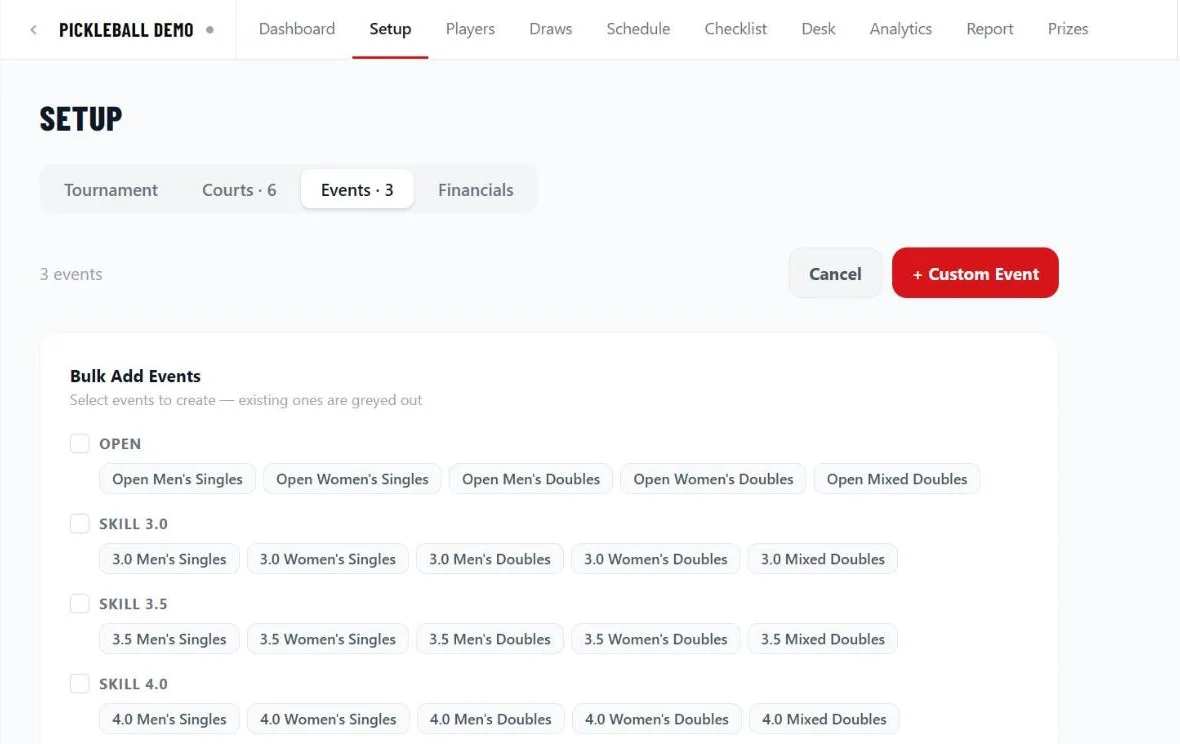
- Events. Use Bulk Add. Depending on the sport you picked, it lists the most common events: age groups, skill levels, singles, doubles and mixed. Tick every event you are holding and add them in one go. Need something unusual? Add a custom event with your own name.
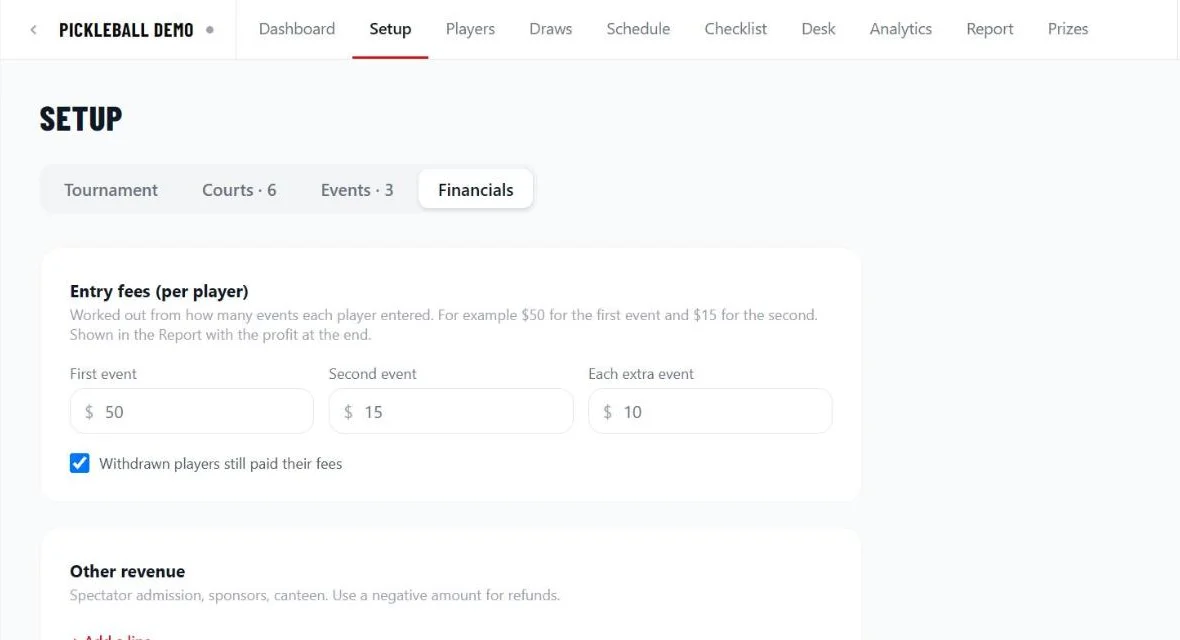
- Financials. Enter your entry fee. This is for you, the organizer, so you know what revenue to expect. Add any other income or expenses you want to track, such as hall rental, shuttles or sponsors. Players cannot pay online in MedalDesk yet. Registering and paying per player or per team is something we would like to add later.
2. Players: send out your registration link
Open Players. This is where entries come in. Use the menu to copy your registration link or open the registration page.
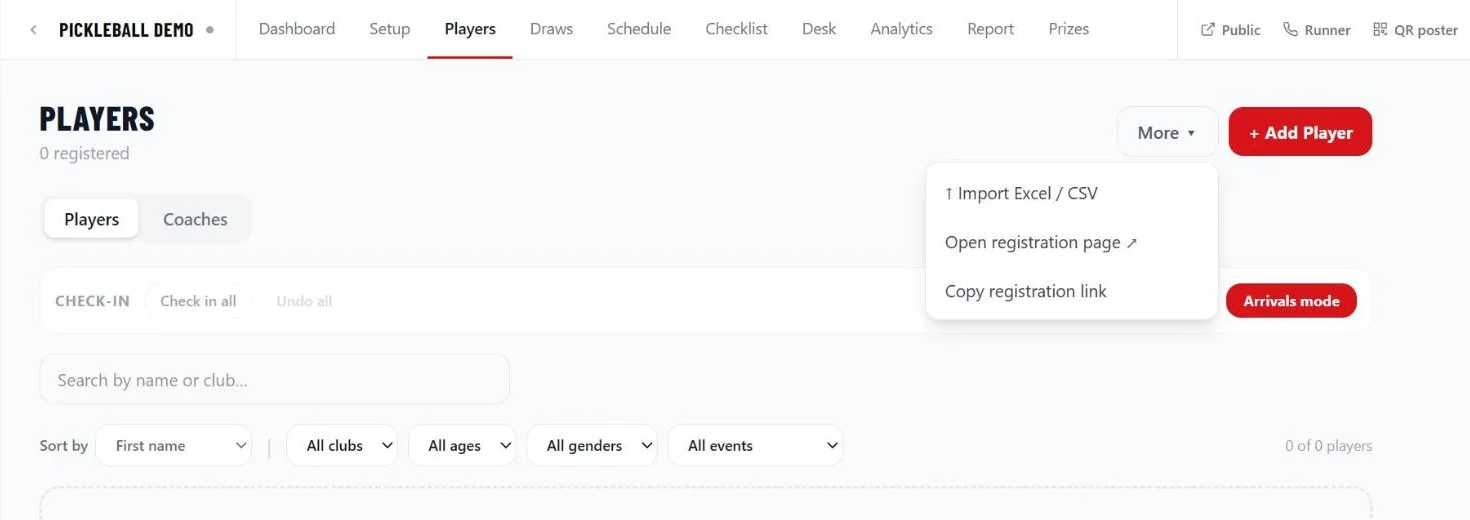
The page matches what you chose in Setup. If clubs or teams enter, coaches see a form for their club. If players enter, they see a player form. Send the link to your clubs or post it where players will see it, and entries show up in the Players tab as they arrive. You can also add players by hand, or import them from a spreadsheet.
Wait until registration is closed and you have everyone before moving on. Draws are easiest to make once the entry list is final.
3. Draws: choose formats and generate
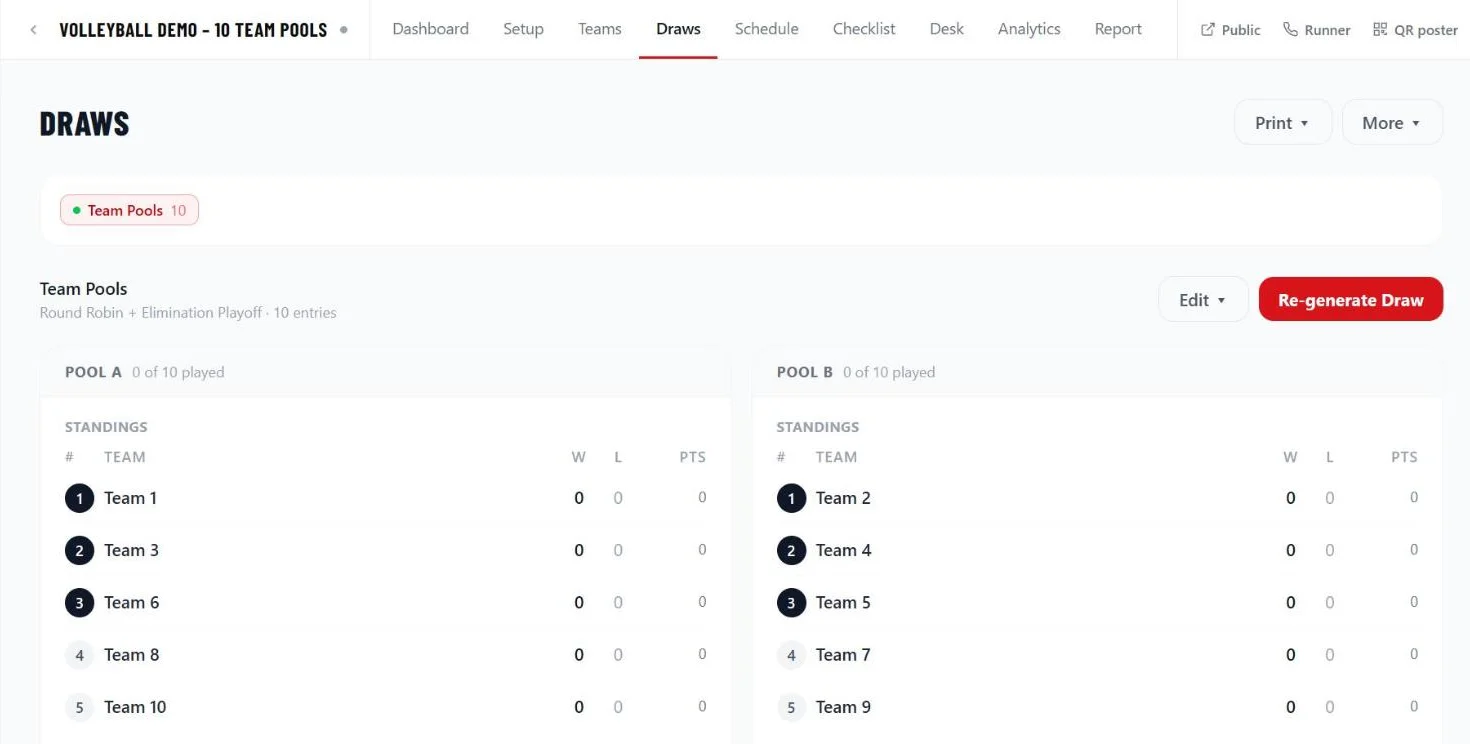
Go to Draws and press Generate All. A screen opens that lists every event, with how many players or teams entered each one.
For each event, pick the format from the list: single elimination, double elimination, round robin, round robin plus an elimination playoff, or Swiss. If every event will use the same format, click it once at the top and it applies to all of them. Each format shows only the options it needs, such as the number of pools, how many advance from each pool, the number of Swiss rounds, or a bronze medal match.
Press Generate. MedalDesk places every player entered in each event into that event's draw automatically. Look over each draw. If something is wrong, fix the entries and regenerate.
4. Schedule: build the day
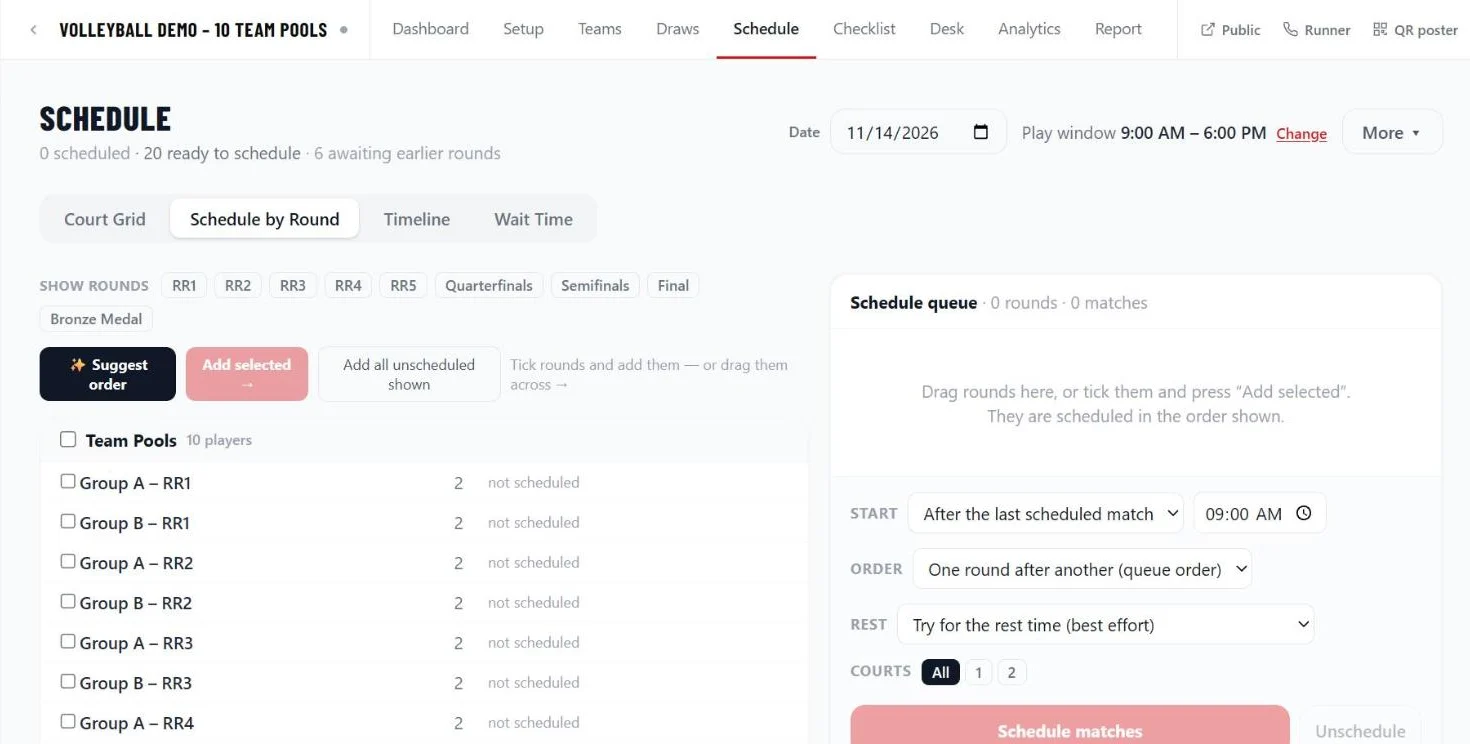
Open Schedule and go to the Schedule by Round tab. Here you decide the order the rounds will be played in. You can drag rounds into the queue yourself, or let MedalDesk suggest an order.
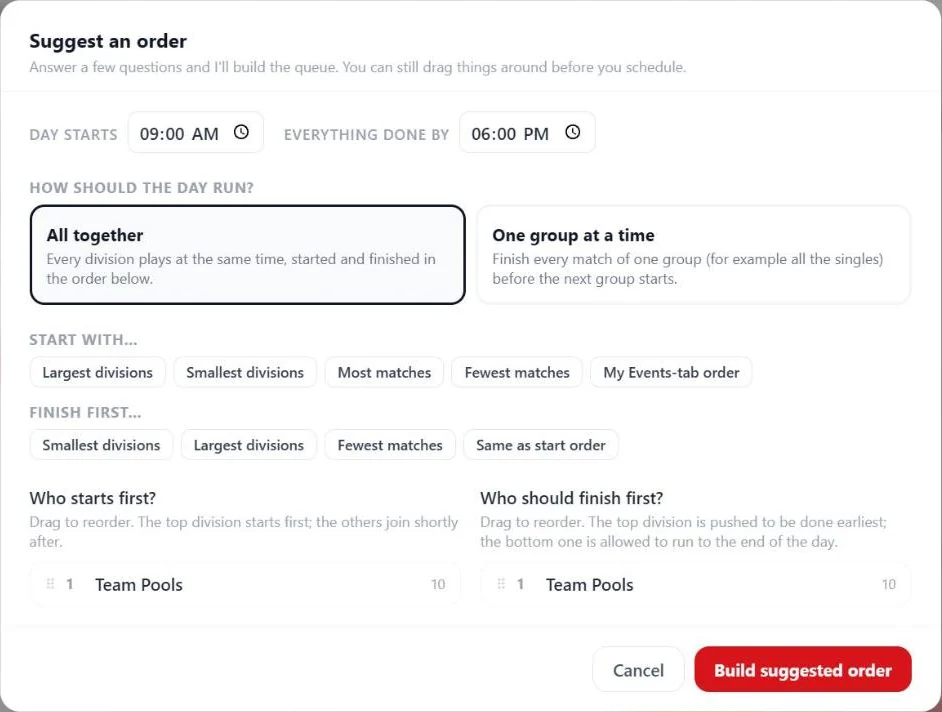
- Press Suggest order and answer a few questions about how you want to run the day, such as when it starts and ends and which divisions go first.
- Press Build suggested order. The queue fills in.
- Drag and drop to adjust it. MedalDesk shows you if any draw was missed, and checks that everything is in the queue.
- Work through the remaining options on the queue, such as the start time, the rest setting and which courts to use, then press Schedule matches.
MedalDesk then schedules every match, day by day, using your rest time and warm-up rules so players are not put back on court too soon.
5. Checklist: catch what you missed
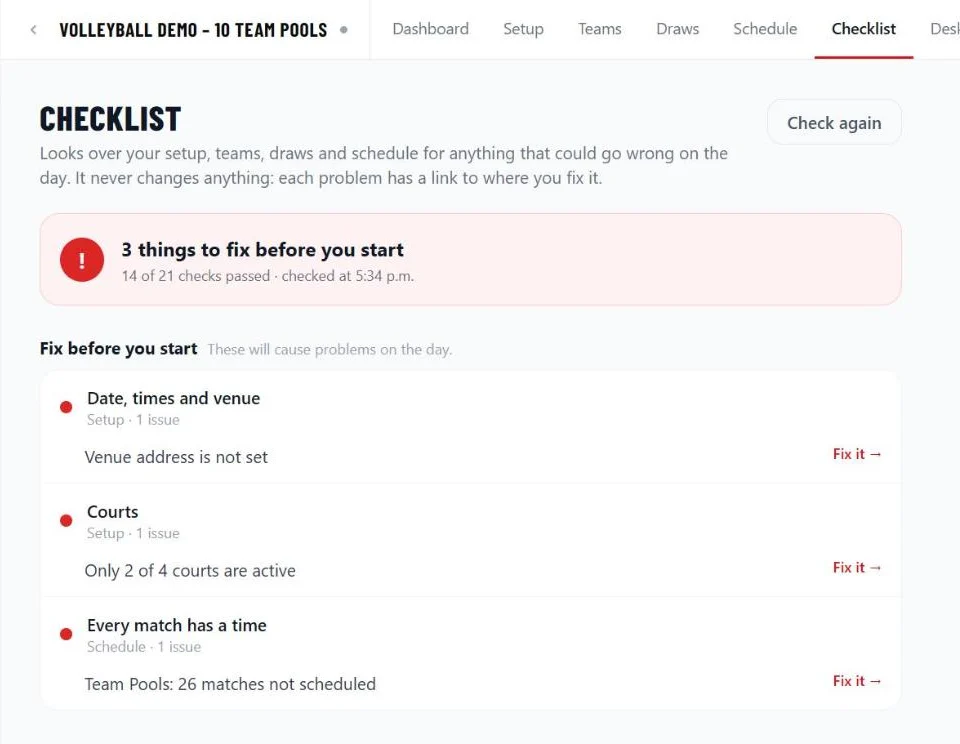
Open Checklist before the day. It lists anything that needs fixing before you start, things worth a look, and a few notes. If something is flagged, go back to the tab it points to, fix it, and check again.
6. Desk: run the day
Desk is where you run the tournament. Every match is listed in the order the schedule set. Call a team to a court by dragging the match onto a court, or by pressing the call button. When the match is over, enter the score. It moves to the Done tab on its own.
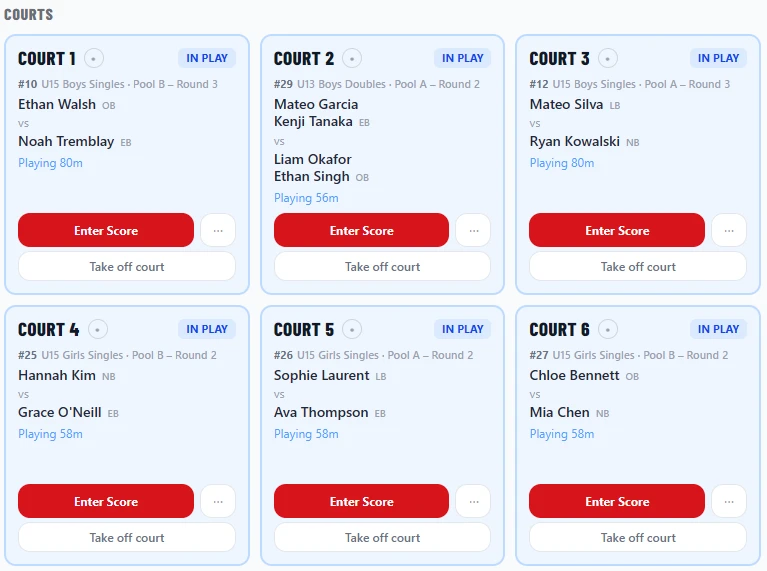
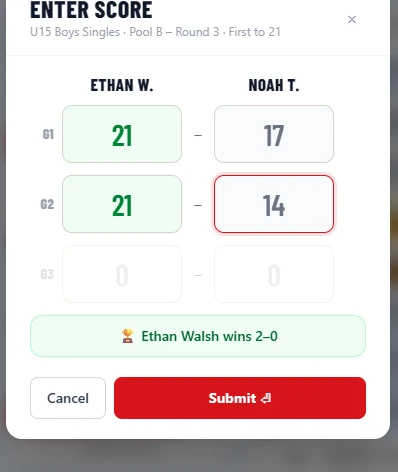
The idea is simple: call matches in order, on time, through the day. If you follow the schedule, every player gets the rest and warm-up time you set. Players follow along on the public live page, so fewer of them come to the desk to ask.
7. Analytics: medals and match times
When the matches are done, open Analytics. It shows who won medals, by event, and by club, with each club's players and medal counts. It also shows how long matches actually took, broken down by event and age group. Use those numbers to plan better next year.
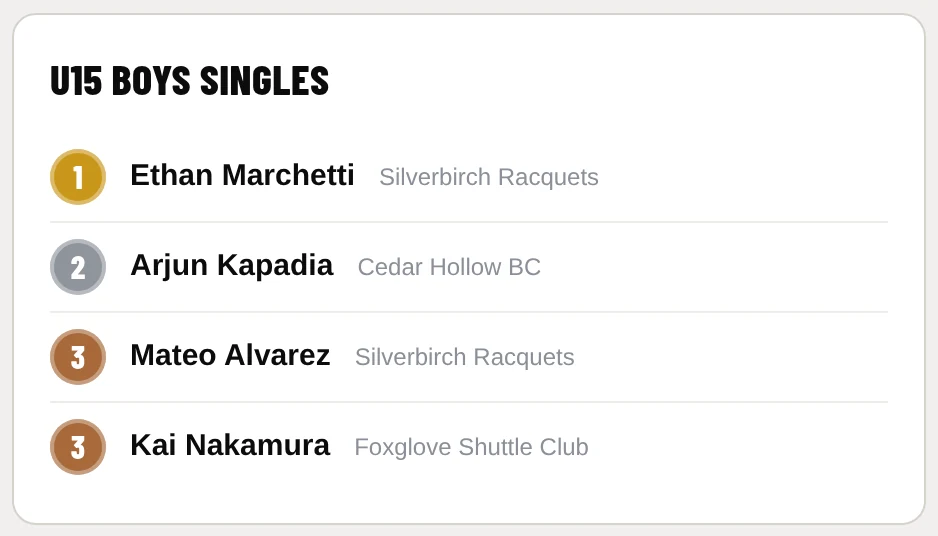
8. Report and Prizes: wrap up
The Report tab builds a report you can print or save as a PDF. It includes the results and the schedule, plus your own Feedback and notes for whoever runs the tournament next year.
The Prizes tab has a prize wheel for any draw prizes you are giving away. Spin it for each prize, and it keeps track of who won. You can customize it for your event.
Try MedalDesk free
MedalDesk builds the court schedule for you, with rest rules, and runs the live desk. Your first tournament is free, with up to 100 players.
Try MedalDesk free